
Screenshots

App details
- Version
- 1.0.5.1
- Size
- 66.30 MB
- Updated
- August 14, 2025
- Requires
- Windows 7
- Language
- English
- License
- Free
- Developer
- ENIGMA STUDIO LLC
- Category
- Windows OS
SoftPas in:
This product is also available in the following languages:
About Awesome Video Player
Download Awesome Video Player – free, fast, multi‑video playback tool
Overview
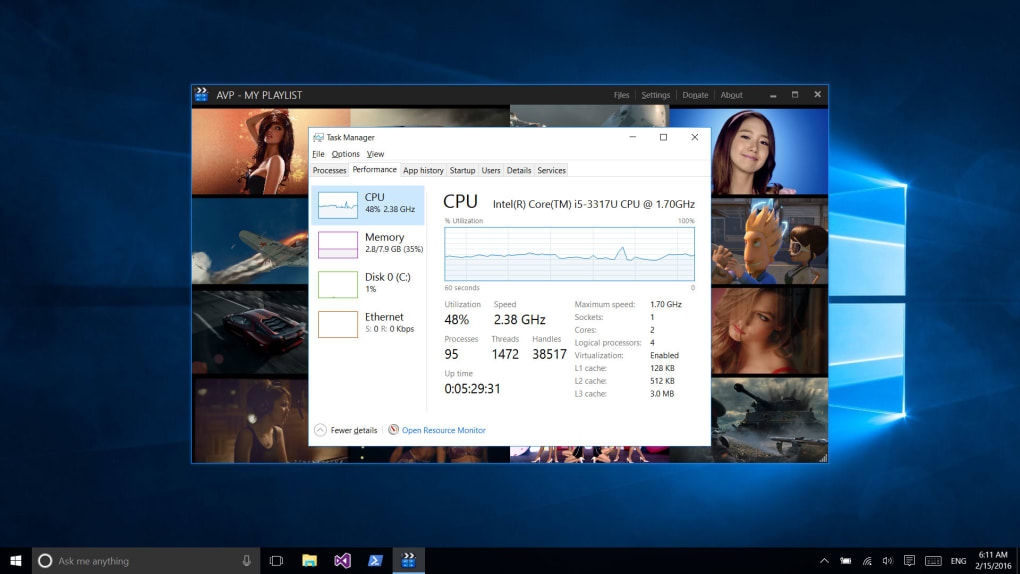
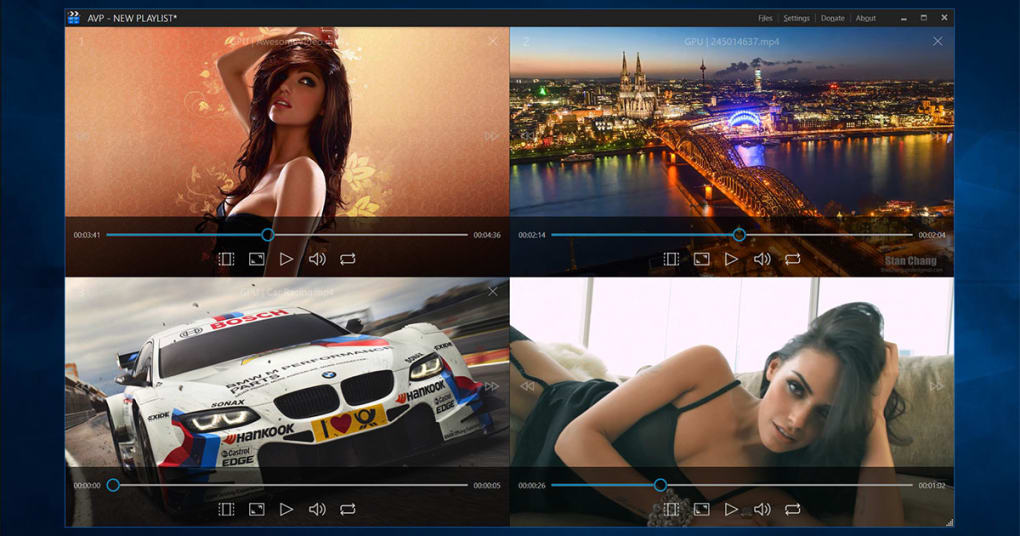
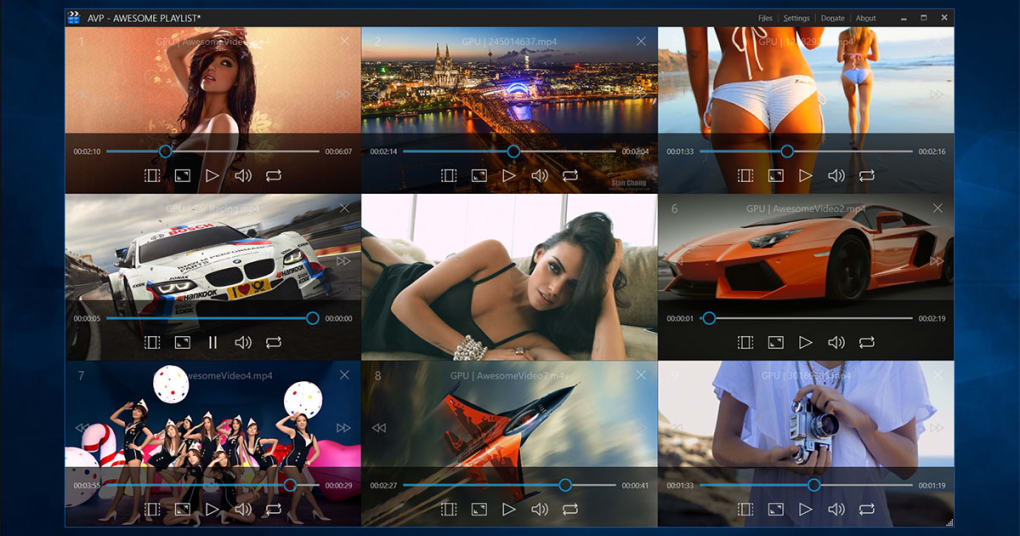
Seeing Multiple Videos At Once — Awesome Video Player is a free multimedia software developed by ENIGMA STUDIO LLC. Designed for power users, creators, and anyone who needs to monitor several video streams simultaneously, the player can open up to 16 videos on a single screen and up to 32 when dual monitors are used, provided the system’s GPU and CPU can handle the load. The application automatically rearranges video windows for optimal screen usage, allowing you to keep every feed visible without manual resizing. Favorite videos can be saved into custom playlists, making repeat playback effortless. The interface is rich yet intuitive, offering keyboard shortcuts for play, pause, fast‑forward, rewind, mute, scrub, full‑screen, and close actions on each video individually or on all videos at once. Compared with traditional video players, Awesome Video Player consumes fewer resources, thanks to its hardware‑accelerated decoding pipeline that leans on the graphics card whenever possible and falls back to CPU‑assisted software decoding only when required. This efficient design ensures smooth playback even when dozens of streams run concurrently.
Key Features
- Multi‑video support: Open up to 16 videos on a single monitor and 32 on dual monitors.
- Wide format compatibility: Handles every major video codec and container, including MP4, MKV, AVI, MOV, WMV, FLV, and WebM.
- Dynamic window tiling: Automatic arrangement maximizes screen real estate without overlapping.
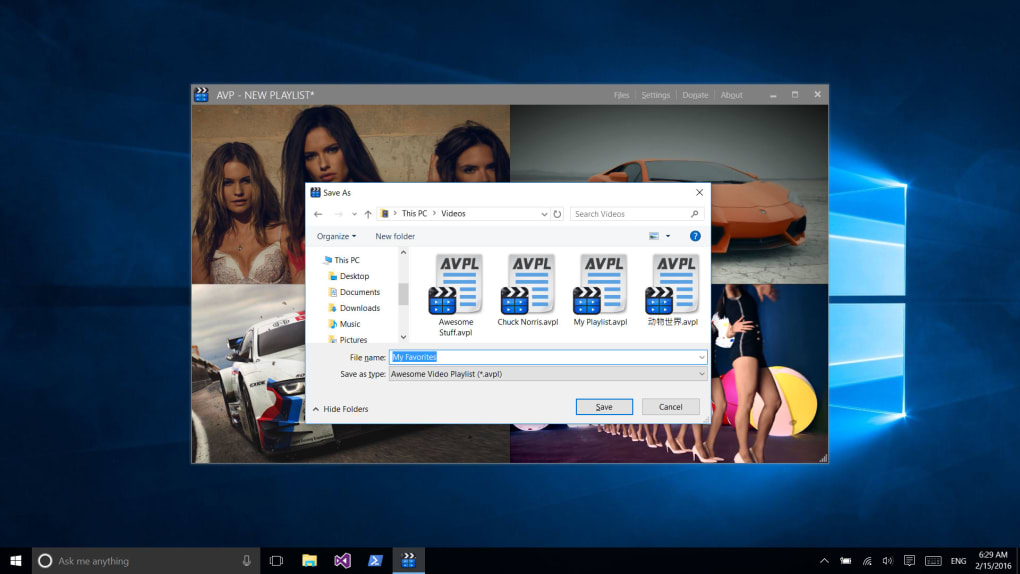
- Custom playlists: Save and load collections of favorite videos for instant replay.
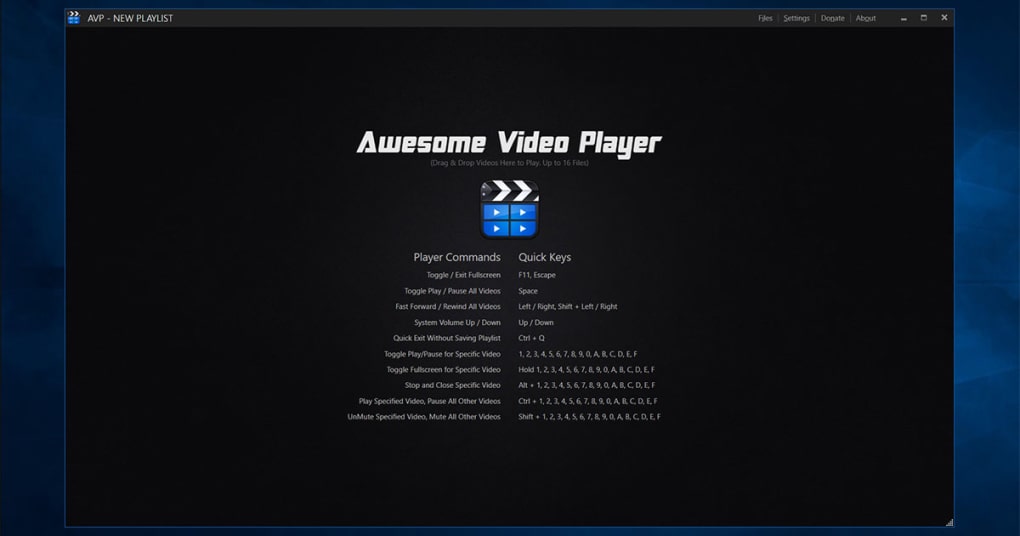
- Extensive keyboard shortcuts: Control play/pause, fast‑forward, rewind, mute, scrub, full‑screen, and close for individual or all videos.
- Low‑resource footprint: Optimized to use minimal CPU and RAM, even with many streams active.
- Hardware‑accelerated decoding: Prioritizes GPU decoding, falling back to CPU decoding only when necessary.
- Full‑screen and picture‑in‑picture modes: Switch any video to full-screen instantly or keep it in a floating window.
- Responsive UI: Scales smoothly across Windows, macOS, and Linux environments.
- Free and regularly updated: No hidden fees; updates bring new codecs and performance tweaks.
Installation & Usage Guide
Getting Awesome Video Player up and running is straightforward, whether you’re on a Windows PC, a Mac, or a Linux distribution.
Step‑by‑step installation
- Visit the official ENIGMA STUDIO website and click the Download button for your operating system.
- For Windows, run the
.exeinstaller; for macOS, open the.dmgfile and drag the app to your Applications folder; for Linux, download the.AppImageor use the provided.debpackage. - Follow the on‑screen prompts – accept the license agreement, choose the installation directory (default is recommended), and click Install.
- Once installation completes, launch Awesome Video Player from the start menu, Dock, or command line.
Basic workflow
When the program opens, you’ll see a clean dashboard with a “Add Video” button. Click it to browse and select multiple files (hold Ctrl or Cmd to choose several at once). The player will automatically tile the videos. To create a playlist, drag selected files into the Playlist pane on the right and hit Save Playlist. The next time you open the player, simply load the saved playlist to restore your layout.
Keyboard shortcuts
Power users can control each video independently or control all videos simultaneously using the following shortcuts (customizable in Settings):
- Space – Play/Pause current video
- Ctrl + Space – Play/Pause all videos
- ← / → – Rewind / Fast‑forward 5 seconds
- Ctrl + ← / → – Rewind / Fast‑forward 10 seconds on all videos
- M – Mute/Unmute current video
- Ctrl + M – Mute/Unmute all videos
- F – Toggle full‑screen for the focused video
- Ctrl + F – Full‑screen all videos (picture‑in‑picture mode)
- Esc – Exit full‑screen or close the selected video
Performance tips
To squeeze the most out of Awesome Video Player, consider these adjustments:
- Enable Hardware Acceleration in Settings > Playback – this pushes decoding to the GPU.
- Limit the number of simultaneously playing videos to match your GPU’s VRAM (e.g., 8‑10 1080p streams on a mid‑range card).
- Use the Low‑Power Mode for background videos that don’t need full frame rates.
Supported operating systems: Windows 10/11, macOS 10.15 and later, Ubuntu 20.04 and newer, Fedora 34+, and other major Linux distributions.
Pros & Cons
Pros
- Handles multiple video streams without choking the system.
- Broad codec support eliminates the need for additional plugins.
- Hardware‑accelerated decoding maximizes playback smoothness.
- Free to download and use, with regular updates.
- Highly customizable UI and shortcut system.
- Playlist management saves time for repetitive tasks.
Cons
- Advanced features (e.g., network streaming) are not yet available.
- Limited built‑in video editing tools; the player focuses on playback only.
- On older GPUs, the maximum number of concurrent videos may be lower than advertised.
- No official mobile app; currently Windows, macOS, and Linux only.
Frequently Asked Questions
Is Awesome Video Player really free?
Yes, Awesome Video Player is completely free for personal and commercial use. There are no hidden fees or trial periods, and updates are released at no cost.
What video formats are supported?
The player supports virtually every common format, including MP4, MKV, AVI, MOV, WMV, FLV, WebM, and more. It also reads uncommon codecs via FFmpeg integration.
Can I stream videos from a network source?
As of the current version, network streaming (e.g., RTSP, HTTP) is not built‑in. However, you can open network URLs as local files using the “Open URL” option, and the player will treat them as regular streams.
How does hardware acceleration work?
When enabled, the player offloads video decoding to the GPU using APIs such as DXVA (Windows), VA‑API (Linux), or VideoToolbox (macOS). This reduces CPU load and allows more videos to run simultaneously.
Is there a way to customize the keyboard shortcuts?
Yes. Go to Settings → Keyboard, where you can remap any shortcut to your preferred key combination. Changes are saved automatically.
Conclusion & Call to Action
Awesome Video Player delivers exactly what its name promises: a powerful, free, and secure tool that lets you watch multiple videos at once without compromising system performance. Its blend of hardware‑accelerated decoding, flexible UI, and robust playlist management makes it ideal for content creators, security monitoring, and anyone who needs a multi‑view experience. While it lacks built‑in streaming and mobile support, the core playback engine is solid and continually improved. If you’re looking for a reliable solution to manage several video feeds on Windows, macOS, or Linux, give Awesome Video Player a try today.
Download now from the official ENIGMA STUDIO website, create your first multi‑video layout, and see how much more productive your workflow can become.
Guides & Tutorials
How to install Awesome Video Player
- Click the Download button above.
- Once redirected, accept the terms and click Install.
- Wait for the Awesome Video Player download to finish on your device.
How to use Awesome Video Player
This software is primarily used for its core features described above. Open the app after installation to explore its capabilities.
User Reviews
No reviews yet. Be the first to share your experience.
You may also like
more
Llama 2
Free-to-use large language model As the new addition to Meta’s arsenal of langua...

NotebookLM
Revolutionizing the note-taking and idea-generation process NotebookLM is an exp...

Github co pilot
AI-inspired software development and coding platform GitHub Copilot is a browser...

Google Gemma
Google’s lightweight AI models Introducing Google Gemma , a family of cutting-ed...

AI Image Enlarger
A free app for Windows, by ai-image-larger. AI Image Enlarger is a free software...

DALL E
AI-driven text-to-image transformation engine DALL·E is a free graphic and desig...